Process State Details dialog
View process state details, such as type, count, and time elapsed.
In the Manage menu’s Process Reporting page, select  View Process State in either of the following menus to open the Process State Details dialog:
-
 Actions menu for a process execution in execution search results
 -
 Actions menu in an execution detail view
Note: The View Process State action is not available for test mode executions.
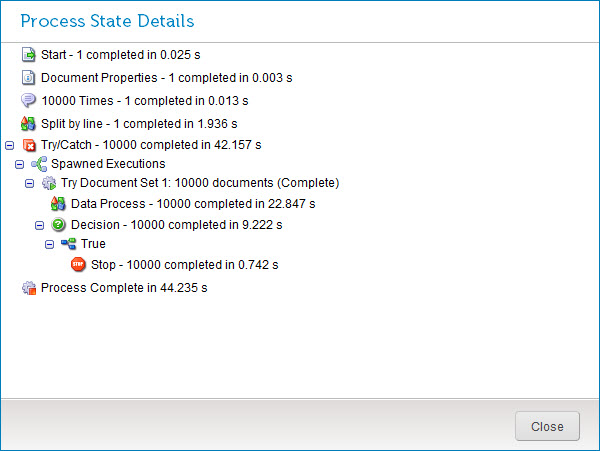
Steps list
For each executed step, the following logged data is shown:
-
Type or, if applicable, custom label
-
Count of either the number of times the step was performed or the number of documents processed, depending on the step type
-
Time elapsed in seconds (“s”), with precision to the millisecond
The last entry in the list is the total process execution time in seconds (“s”), with precision to the millisecond.
Close
Clicking this button closes the dialog.
